Claude
 ChatGPT
 Gemini
If you’re trying to choose a work management tool for your team or organization, I completely understand the worry. This decision will shape how your team works, and how productive it is, for years. If the tool you pick doesn’t live up to expectations, you’re facing the nightmare of moving the whole organization from one app to another: slow, expensive and painful. Choosing between Asana, monday.com, Basecamp, ClickUp and a long list of other apps raises a lot of questions. Is Asana the right tool? Is it intuitive enough? What does it give you that the others don’t?
I’m not going to compare Asana with other tools in this article. Instead, I’ll show you how Asana works in a project manager’s day-to-day: 24 practical ways to use its features to get rid of everyday pain points. Right now you need a tool whose features actually cover what your team needs.
What is Asana?
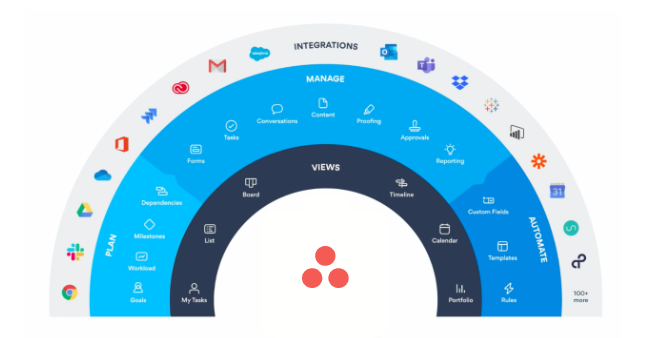
Asana is a tool for managing work and projects as a team. It brings together tasks, deadlines, files and conversations that usually get lost in email and Excel spreadsheets. In Asana a project manager can see who’s working on what, what’s blocking the project and whether the deadline is realistic.
When we run a transformation, we treat Asana as:
- the knowledge source for autonomous agents, which can pick up the tasks collected there just like any other member of the organization
- a platform for auditing what isn’t working in communication inside the team and between departments
- the most up-to-date picture of what’s happening in the company
Work in Asana is built from three blocks. A task is a single thing to do, with an assignee and a due date. A project groups tasks around one goal, for example a campaign or a client rollout. A portfolio pulls projects into one view, so a manager doesn’t have to open each one separately. You can view the same project as a list, a kanban board, a calendar or a timeline.
Asana runs in the browser, as a desktop app and on your phone. The free Personal plan is enough for one or two people. A team needs at least the Starter plan.
When is Asana not for you? If nobody on the team makes sure tasks land in Asana instead of email, the tool will quickly turn into one more list nobody reads. Asana organizes work that already has an owner and a deadline. It won’t create them for you.
Asana use cases: the most useful features in each plan
This isn’t a complete guide. I won’t list every feature, or even every use of each feature I mention. If after reading this you want that level of detail, we’ll gladly activate an Asana trial for you and walk you through the key features, free of charge!
In this article, though, I’ll stick to a selection of practical, easy-to-grasp Asana features.
The features are in no particular order, but at the end of the article I’ve grouped them by Asana plan, with a short description of each plan.
Stars for productivity
To make the list easier to scan, I’ve rated each feature’s impact on productivity from 1 to 3 stars. Every organization will weigh them differently, so treat my stars as a big simplification.
Enjoy the read.
| What you’ll learn | In short |
|---|---|
| Project planning in Asana | Timeline with a Gantt chart, milestones, dependencies and date ranges show whether your project deadlines are realistic. |
| Communication without hundreds of emails | Comments, task descriptions and messages in Asana replace email: the whole discussion stays on the task, attachments included. |
| Repeatable processes and order in drive-by requests | Recurring tasks, templates, forms and rules standardize repeatable work and make sure every request arrives complete. |
| Keeping control of many projects at once | Portfolios, Workload, Goals and reporting give you project statuses and team availability in one view. |
| Which Asana plan to choose | The free Personal plan handles at most 2 people per project. A team needs at least Starter (Timeline, forms, rules), and portfolios and goals are in Advanced. |
24 Asana use cases in practice
1. Timeline: the fix for projects that keep slipping past the deadline
Productivity: ⭐️⭐⭐
Plan: Starter
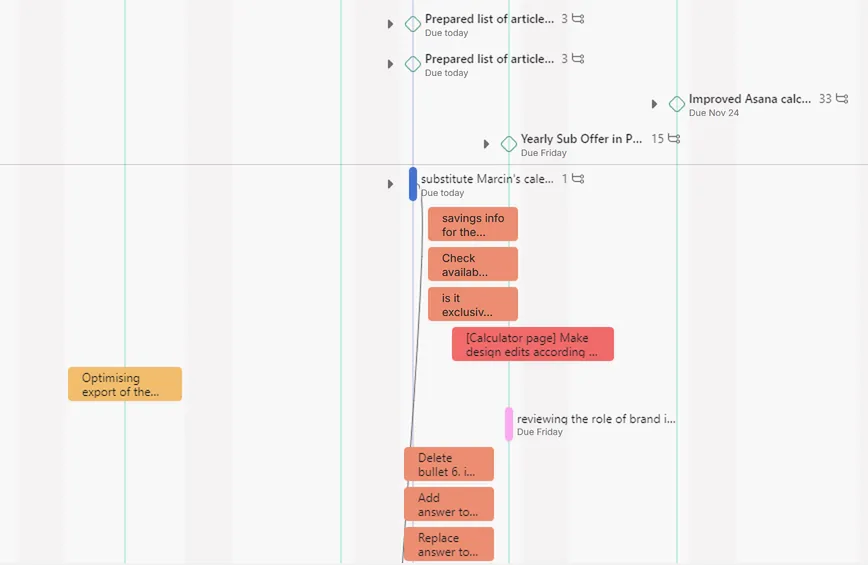
Showing the project on a timeline, as a Gantt chart, helps you manage time better and check at a glance whether your project deadlines are achievable.
Drag a task along the Timeline to change its date. This view is also the easiest place to add dependencies between tasks.
The Timeline only shows tasks that have a date, so it may not show every task in the project. Click Unscheduled tasks to see all the tasks without a date. Drag & drop them onto the Timeline to give them a date and set how long they’ll take, in one move.
2. Milestones: keep important tasks visible
Productivity: ⭐️⭐
Plan: Personal
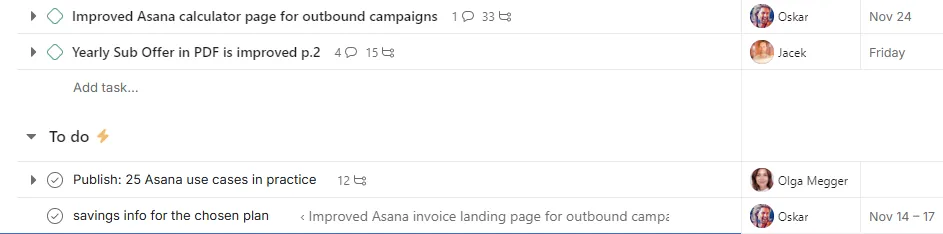
A milestone is a separate task type in Asana. It gives a task more weight and signals that more is riding on it than on a standard task.
3. Approvals: speed up an approval process that drags on
Productivity: ⭐️⭐
Plan: Advanced
An approval is a task type in Asana with more options than a standard task. Instead of a “Mark complete” button, it has “Approve”, “Request changes” and “Reject”. An approval is usually the task holding up the next ones, and because it’s a separate task type, it’s easy to search for. That makes life easier for managers: they can find every approval waiting on them and unblock projects and teams. Approvals are most often used as subtasks on tasks that need sign-off. You can create several approval subtasks for different people.
4. Recurring tasks: repeat work that doesn’t get lost in the daily rush
Productivity: ⭐️⭐
Plan: Personal
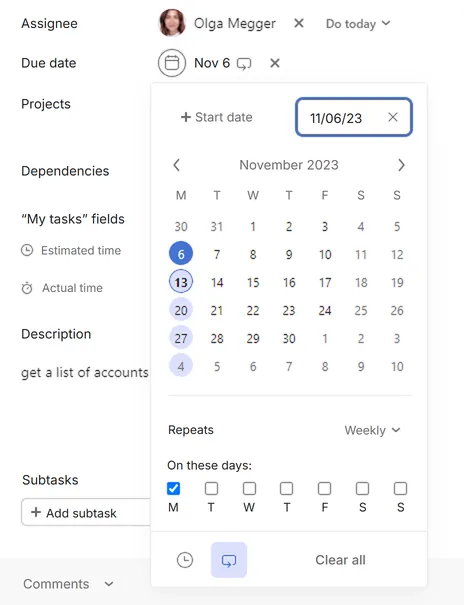
Instead of adding 50 identical tasks for every week of work, you can create one recurring task due, say, every Friday.
When you complete it, Asana automatically creates a new one due the following Friday. The comments that appear automatically on a recurring task work as reminders.
5. Proofing PDFs and images: feedback on documents and graphics as pinned tasks
Productivity: ⭐️⭐
Plan: Advanced
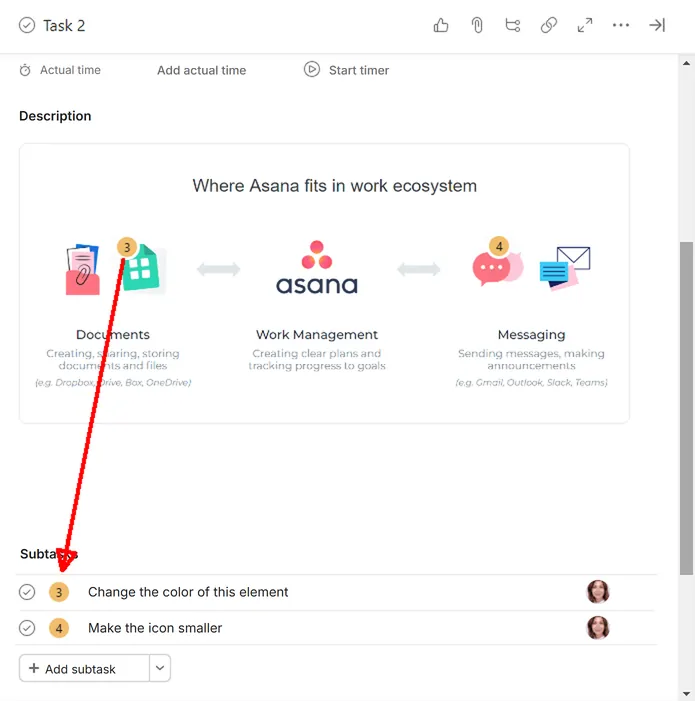
When you attach an image or a PDF to a task, a preview appears in the task pane. Click anywhere on the preview to drop a pin, which also becomes a subtask. There you can add a change request, assign it to a specific person and set a due date.
Every change is marked right on the preview, which makes communication much easier.
6. Task dependencies: the fix for too many tasks at once
Productivity: ⭐️⭐
Plan: Starter
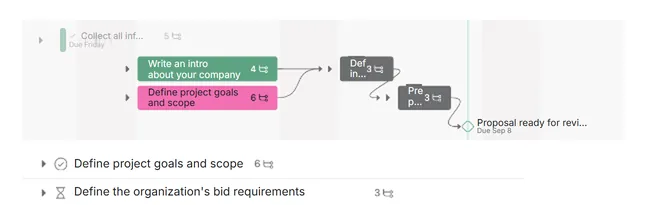
A task that depends on another task has a different icon from a standard one. Instead of the usual checkmark, it shows an hourglass, a visual signal that the task can’t start yet because it’s waiting for the task before it. The assignee sees the hourglass until the task is ready to start.
7. Forms: the fix for drive-by requests that arrive without the details you need
Productivity: ⭐️⭐
Plan: Starter
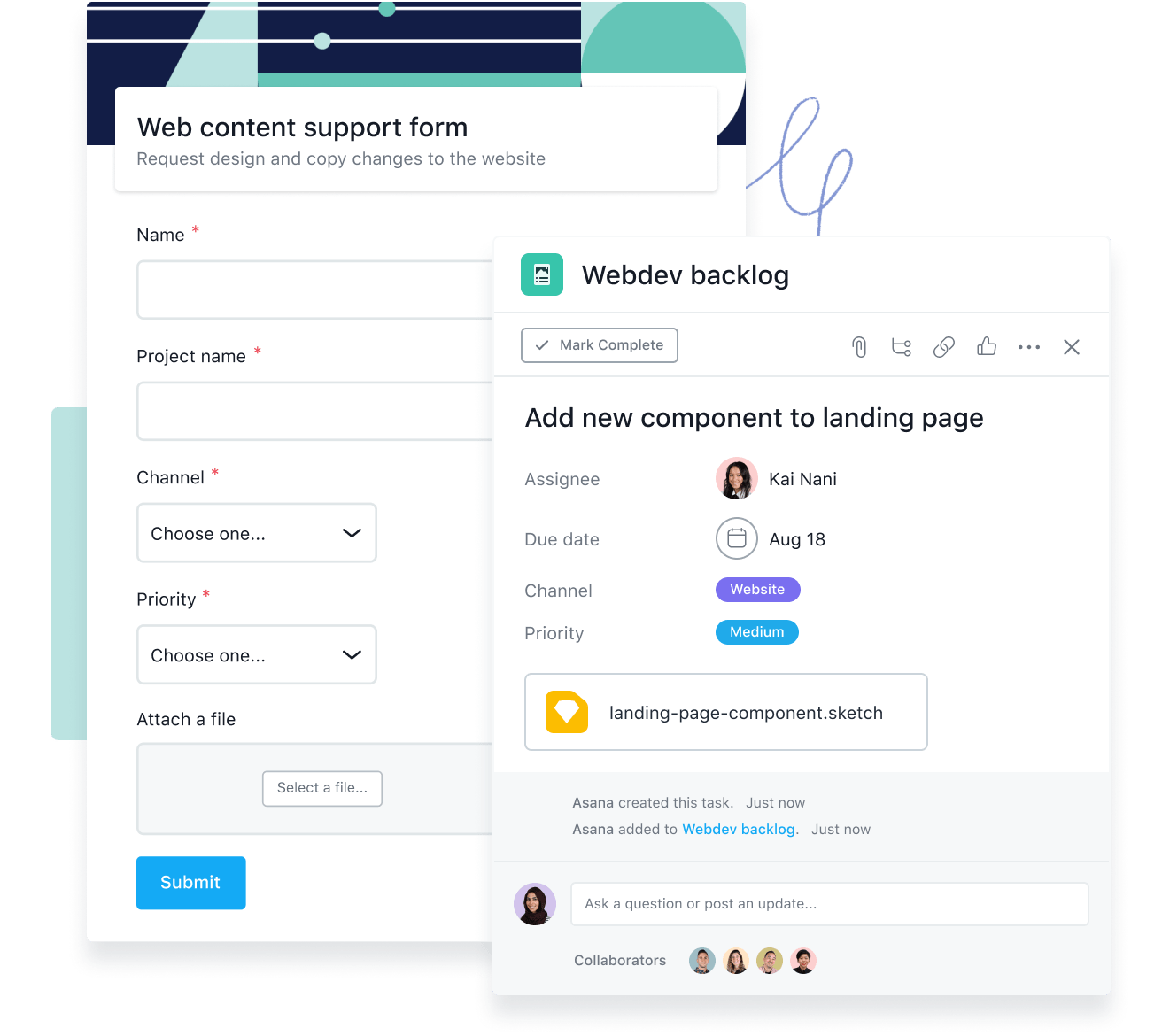
If you get a lot of requests from many sources and want them to arrive ready to work on, so you don’t have to chase the requester for missing information, use a form.
A form collects all the information you need and saves it in the task. You can ask people to set a priority, attach a file or choose the type of request (bug, feedback, improvement idea).
You can add conditions to a form, so a task created from it lands not just in a specific project but even in a specific section.
8. Subtasks: break a task that’s too big into pieces
Productivity: ⭐
Plan: Personal
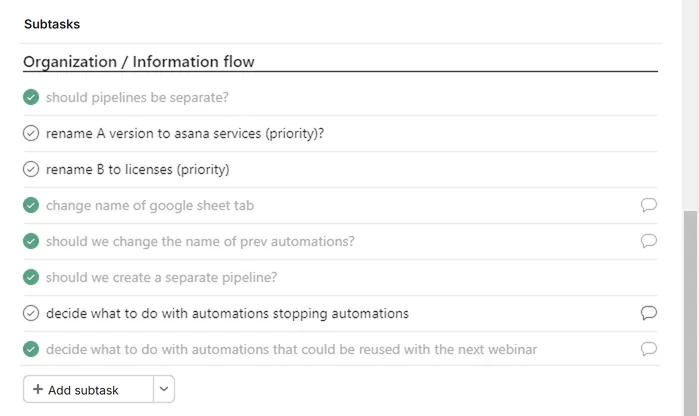
Use subtasks in bigger tasks to break them into smaller steps and track progress you wouldn’t otherwise see until the whole big task was done.
An unconventional example: create a milestone, add 4 subtasks called “status” and assign them to the person responsible for checking that the milestone will be hit on time.
9. Task date range: when can I start working on this?
Productivity: ⭐⭐
Plan: Starter
Besides a due date, every task can have a start date, which gives it a date range. This is especially useful together with the Timeline view, where you can build a Gantt chart of the project.
10. Task templates: ready-made procedures for repeat tasks
Productivity: ⭐⭐⭐
Plan: Starter
Use templates to describe and standardize tasks like signing a contract or a sales meeting. Create several kinds of procedures, for example different contract types for different clients.
For longer procedures, sections make them easier to read. Yes, you can add sections inside a task too. When you create a new subtask, press Tab+N to add a section.
11. Project status: instead of meetings that should have been emails
Productivity: ⭐️⭐
Plan: Personal
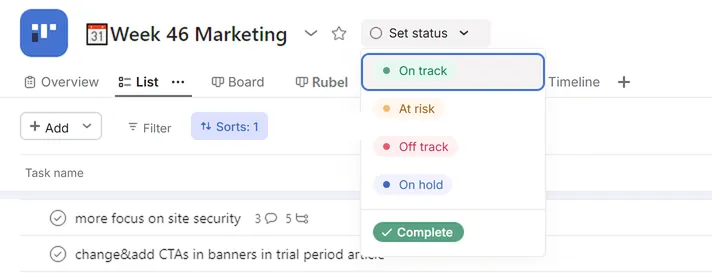
Use it to send key project information to everyone on the project in one click.
A status update won’t reach people who only work on individual tasks but aren’t project members. It’s up to each person whether they want notifications about the project’s status, only about their own tasks, or both.
12. Task comments: instead of hundreds of emails without context
Productivity: ⭐️⭐️⭐
Plan: Personal
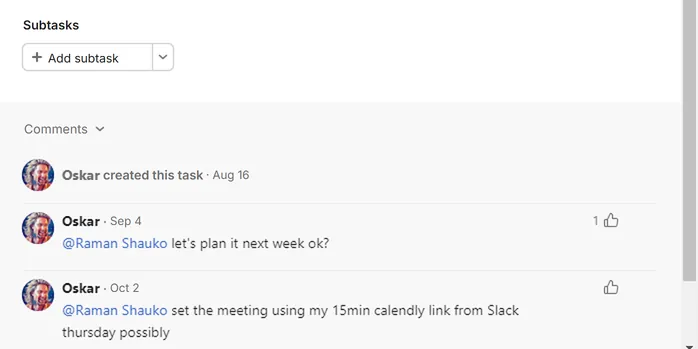
Comments are one of the most important features in Asana. Every task has its own discussion about that specific task. Instead of emails without context, the whole conversation about the task (attachments included) sits in one thread.
13. Custom fields: from Excel into the project
Productivity: ⭐️⭐
Plan: Starter
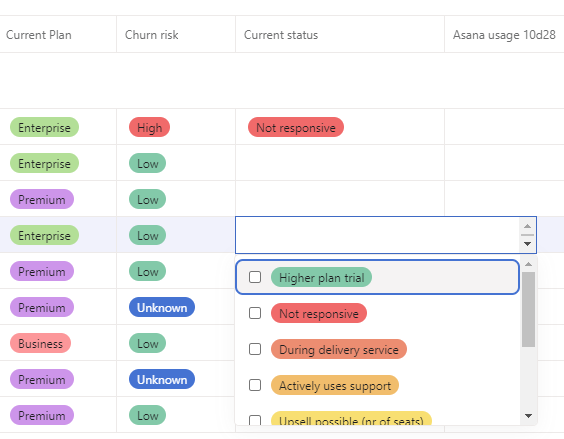
Custom fields in Asana are a more advanced version of tags: they add extra information to tasks. Every task can have a cost, a time estimate, an owning department, a status, a priority and dozens of other fields you define yourself. Projects with color-coded custom fields let you read the status or priority of tasks at a glance. One of the more interesting uses is a “Clarity” field with the options 🔴Unclear, 🟡OK, 🟢Great. It’s very handy for new projects: before kick-off you can see whether the tasks are clear to the team and whether people can start work. It also makes the kick-off easier. Sort the tasks from least clear and go through them one by one. After that meeting, as the PM, you know everyone understands not just what to do, but how to do it.
14. Project Overview: the project charter, key decisions and key files
Productivity: ⭐
Plan: Personal
The first tab in every project (next to the List, Timeline, Board and Calendar views) is the place for the project’s basic information. You can add a presentation of the product you’re developing, the project brief or an Excel file with the list of training participants. If it’s a client project, you can add basic information about the client too.
That way everyone can find the most important files quickly, and new people on the project can get up to speed on what it’s about.
15. Project files: a quick look at every file from every task in the project
Productivity: ⭐
Plan: Personal
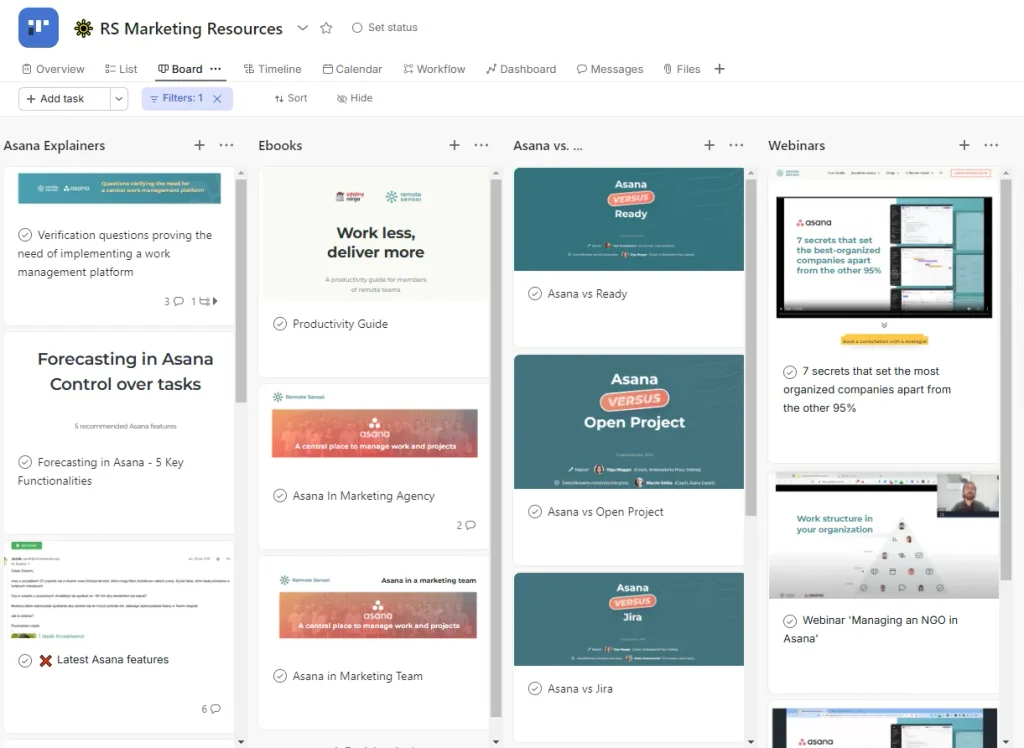
You can attach a file to any task in a project. If you want to find a file fast without opening task after task, use the “Files” tab to see every file from every task in the project.
16. Messages: when important emails get lost in the inbox
Productivity: ⭐
Plan: Personal
Instead of sending an email to the whole team or everyone on the project, which will sink under the next pile of emails in minutes, you can send a message in Asana. Everyone on the project or team gets a notification. The message is also easy to find for people outside the team who want to look it up later.
17. Task description: instead of sending the details by email
Productivity: ⭐️⭐️⭐
Plan: Personal
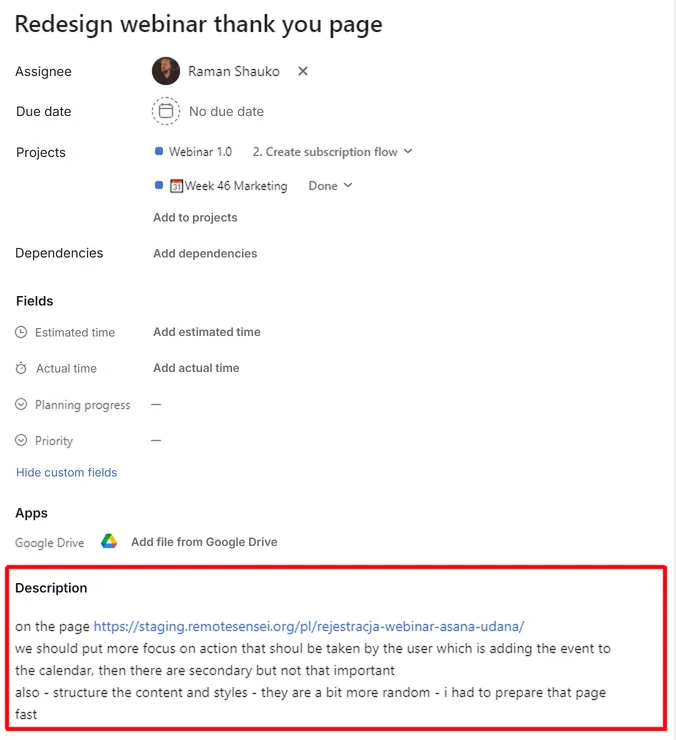
Asana’s most basic feature gets 3 stars mostly because of the problems a missing description causes. Tasks with nothing but a title either never get done or keep bouncing back to whoever delegated them.
A good task description passes on everything needed to do the task (attachments included), which helps more tasks in the project finish on time.
18. Inbox: notifications only about your own tasks
Productivity: ⭐️⭐️⭐
Plan: Personal
How many emails do you get every day on topics you’re not needed for at all? Wouldn’t you like to unsubscribe from those threads and focus on your own work?
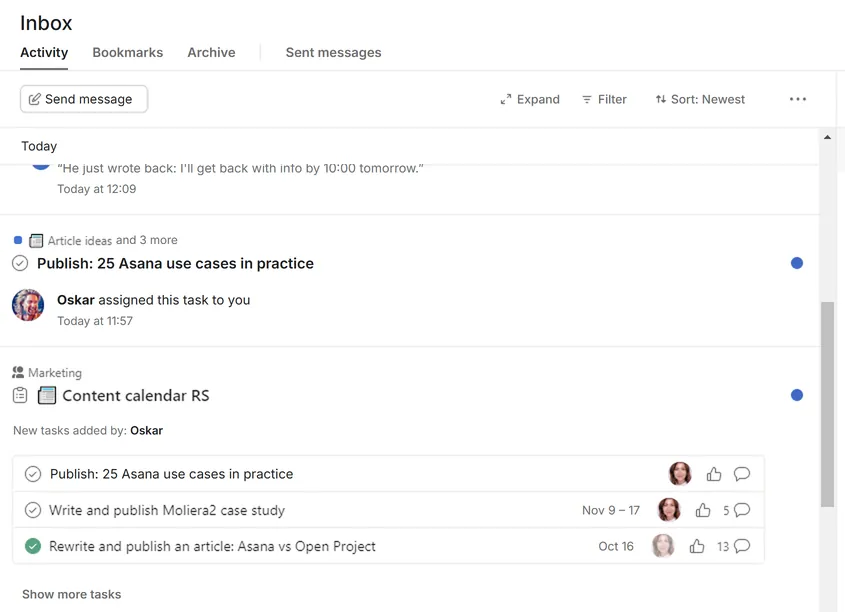
In Asana every task is a separate thread, and only the people added as collaborators on the task take part in it. If a task doesn’t concern you, you can leave it and stop getting notifications about it. If you need to, you can still find the task, and the whole conversation stays visible to you. You can rejoin the discussion at any time by adding yourself as a collaborator, or someone can pull you back in by @mentioning you in a comment with a question. Nothing slips past you, and you get notifications only when you want them.
The result: you control your Inbox and which tasks and projects you take part in. No more internal spam.
19. My tasks: personal planning
Productivity: ⭐️⭐
Plan: Personal
My tasks is the view that shows every task assigned to you across all your projects. With sections and rules, you can build your own personal work management system.
20. Portfolios: a quick look at the status of many projects
Productivity: ⭐️⭐️⭐
Plan: Advanced
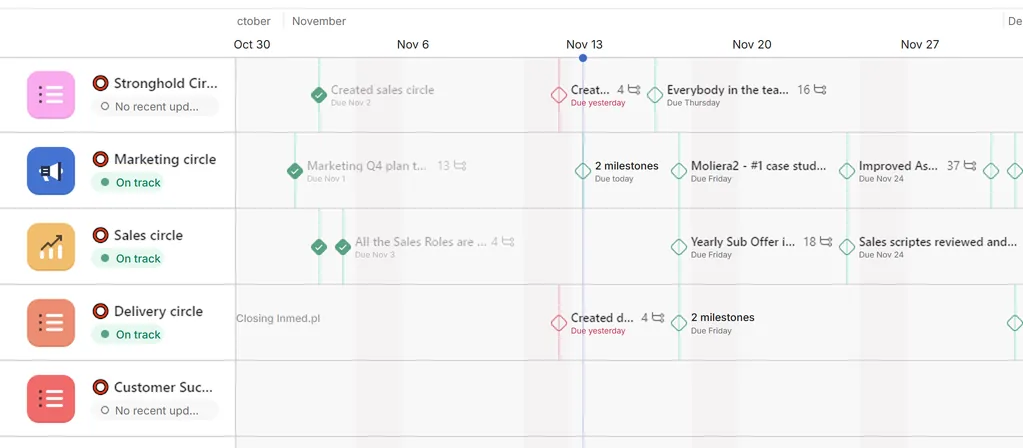
A portfolio is a folder of projects. It lets you check the status of a dozen or more projects at a glance and shows progress, overdue tasks and project status, all in one list of projects.
A portfolio also shows your projects on a timeline with the milestones highlighted. A must-have for organizations that run on projects.
21. Goals: for when you have goals but no plan to reach them
Productivity: ⭐️⭐
Plan: Advanced
The main problem with goals in most organizations is that they’re completely absent from day-to-day work. We often see them in red once a quarter, then go back to work, only to see the same thing next quarter. The result: no link between team or company goals and the daily tasks.
In Asana you can connect goals to specific projects that hold the plan for reaching them. Every task has an owner, so everyone knows what they’re supposed to do.
Goals then get easier to deliver on, and easier to track. Seeing how finished tasks move the goals forward motivates your team and builds team spirit.
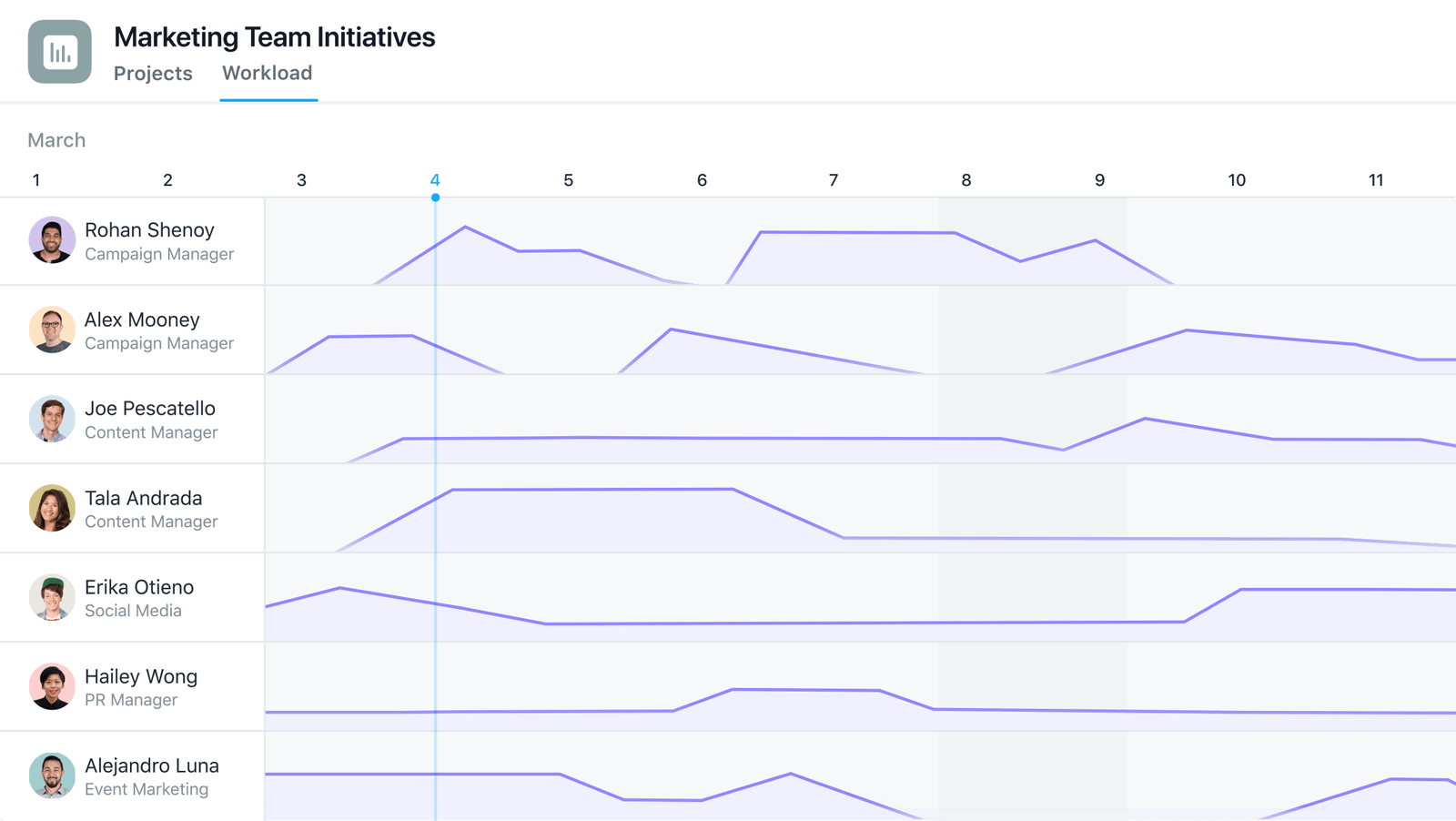
22. Workload: who’s working on what, and who should get this task
Productivity: ⭐️⭐️⭐
Plan: Advanced
“Who’s free this week? Who can I give this task to?” With Workload, that question stops being a problem for your organization.
One timeline view shows every project, the people on those projects and their tasks (start and end), including how much working time the tasks take up (if you fill in the time estimate field).
You can move tasks from overloaded people to the ones who have capacity right now.
23. Rules: expert-level procedures
Productivity: ⭐️⭐️⭐️
Plan: Starter
In organizations with complex processes, this feature deserves 4 stars. Rules let you build custom, non-linear processes where there isn’t just one path to the finish.
They let you combine the skills of many people into a custom process, with a lot of clarity.
For example:
- New task added to the project » assign it to Marek
- Task moved to “Approval” » add an approval for Tomek, due in 3 days
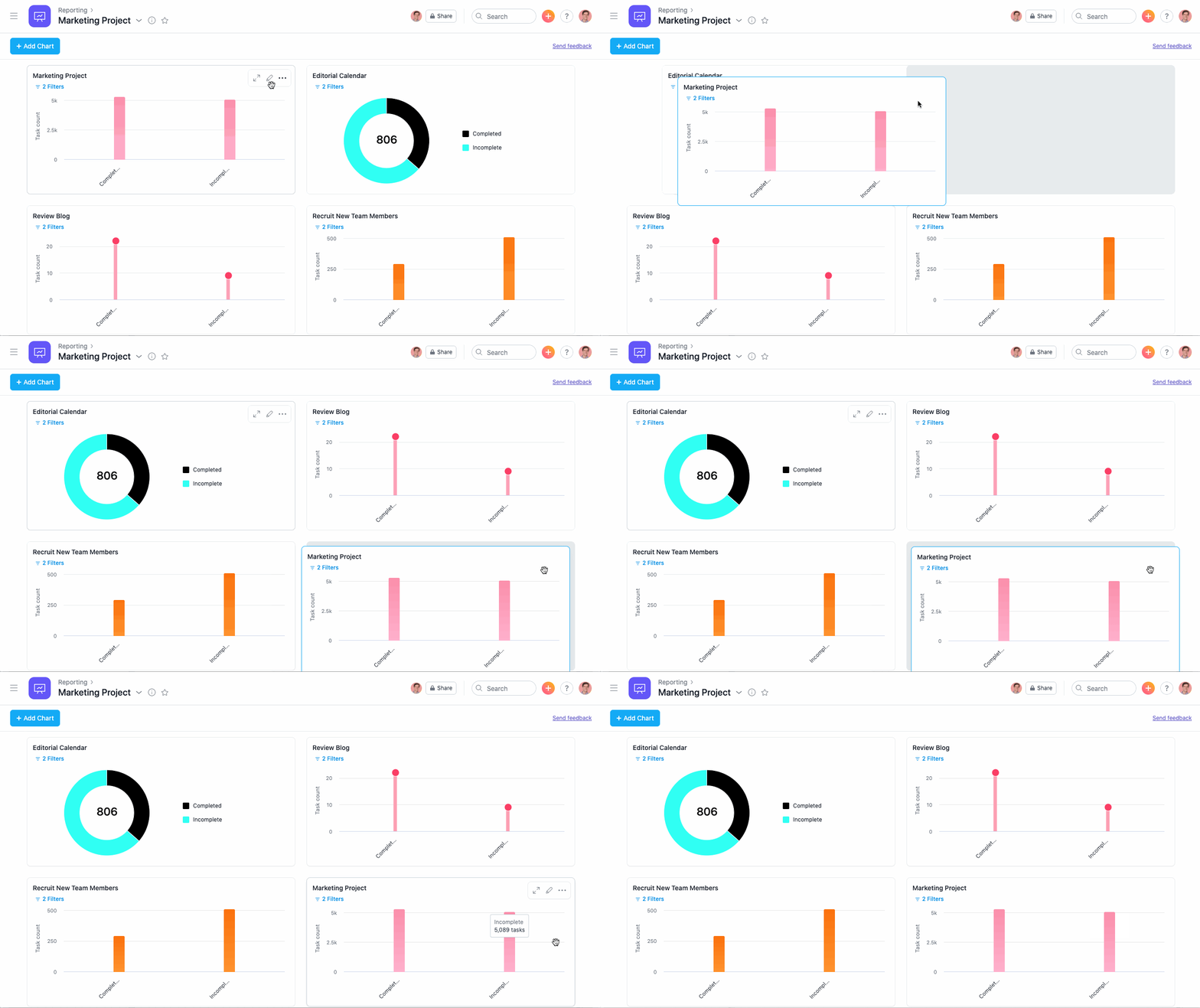
24. Reporting across the organization: the fix for inefficient processes
Productivity: ⭐⭐️
Plan: Starter
Build a custom report in seconds and find out where your organization’s efficiency problems are. Example reports:
- Average time to complete tasks in a project
- Minimum and maximum time to complete a given type of task
- Total hours spent on support for a selected client
- Overdue tasks per person
- A burnup chart of completed tasks over time
- Tasks that have stayed open the longest
Asana plans: which use cases are in Personal, Starter and Advanced
Asana renamed its plans in 2023: the old Premium is now Starter, and Business is now Advanced. Below are the same use cases, grouped by the plan where they first become available. For current prices and a license calculator, see our Asana pricing guide.
Personal (free)
The free plan is now designed for one or two people: a project can have at most 2 members. It’s enough to organize your own tasks and try out the basics, but not for a whole team.
- Task description: instead of handing over tasks by email ⭐️⭐️⭐
- Inbox: notifications only about your own tasks ⭐️⭐️⭐
- Task comments: instead of hundreds of emails without context ⭐️⭐️⭐
- Project status: instead of meetings that should have been emails ⭐️⭐
- My tasks: personal planning ⭐️⭐
- Milestones: keeping important tasks visible ⭐️⭐
- Recurring tasks: repeat work that doesn’t get lost in the daily rush ⭐️⭐
- Project Overview: the project charter, key decisions and key files ⭐
- Subtasks: when a task is too big ⭐
- Project files: a quick look at every file from every task in the project ⭐
- Messages: when important emails get lost in the inbox ⭐
Starter
The first plan built for teams: unlimited users, plus Timeline, forms and rules. For most project teams it’s a sensible place to start.
- Timeline: projects that keep slipping past the deadline ⭐️⭐⭐
- Rules: expert-level procedures ⭐️⭐️⭐️
- Task templates: ready-made procedures for repeat tasks ⭐⭐⭐
- Task dependencies: too many tasks at once ⭐️⭐
- Forms: too many drive-by requests without the details you need ⭐️⭐
- Task date range: when can I start working on this? ⭐⭐
- Custom fields: from Excel into the project ⭐️⭐
- Reporting: dashboards for projects and the whole organization ⭐⭐️
Advanced
The plan for organizations running many projects at once that need to see the whole picture: portfolios, goals, team workload and formal approvals.
- Portfolios: a quick look at the status of many projects ⭐️⭐️⭐
- Workload: who’s working on what, and who should get this task ⭐️⭐️⭐
- Goals: you have them, but no plan to reach them ⭐️⭐
- Approvals: an approval process that drags on ⭐️⭐
- Proofing PDFs and images: feedback on documents and graphics as pinned tasks ⭐️⭐
How to deal with problems at work
Most problems come from not having a systematic approach to work. There’s a name for it: adhocracy, where “unplanned” is in charge. It’s very hard to grow in those conditions. The only solution we know is a work management system. It doesn’t have to be software. You could just as well run it on paper or in Excel, but why would you? If you spend all day in email and spreadsheets, you’re already trying to build your own work management system, just with tools that weren’t made for it. The tool isn’t everything, though. What also counts is your team’s work culture, the place where new habits either take hold or don’t. In the Reliability Protocol we work on this in Stages 9-12, Adoption, where the team learns to actually use the new system in its daily work. If you want to fix this, it’s time to make a decision. You don’t have to commit to Asana straight away. What matters is that you decide you’re going to do something about it. That’s the first step to real change. And if you want a system like this to work for the whole team, not just for you, see what an Asana implementation for your team looks like with our support.
Try Asana for free
If you’re considering Asana but want to compare it with other tools, or you’ve already made up your mind, you can try Asana free for a month with our support. After a month you’ll decide whether it’s worth going further. And if you’d first like to check how ready your team is for a change like this, take the short Reliability Diagnostic. In a few minutes it shows you where your way of working is losing reliability.
Frequently asked questions
What is Asana, and what is it for?
Asana is a work and project management tool that keeps a team’s tasks, deadlines and communication in one place, instead of in email and Excel spreadsheets.
Which Asana features help a project manager most?
The biggest impact on a project manager’s work comes from Timeline (the Gantt chart), task comments, portfolios and rules. Together they cover planning, communication and status tracking.
Is Asana’s free plan enough for project management?
Not for a team. The free Personal plan allows at most 2 members per project and has no Timeline, forms or custom fields. To manage projects as a team you need at least the Starter plan.
Personal (free) is for 1-2 people: tasks, comments, milestones. Starter adds unlimited team members, Timeline, forms, custom fields and rules. Advanced adds portfolios, goals, Workload and approvals.
Can I make a Gantt chart in Asana?
Yes. Asana’s Timeline view works as a Gantt chart: it shows task start and end dates, how long each task takes and the dependencies between tasks.
How do I test Asana before rolling it out in my company?
The best way is on a real project during a trial. You can test Asana free for a month, including with outside help setting it up and running your first rollouts.