Claude
 ChatGPT
 Gemini
Bringing in a new tool is a revolution, and it plays out on several levels at once.
That’s probably why you’re asking yourself where do you even start testing Asana?
This article gives you pointers that make the start easier.
You’ll also see how to use Asana and how to bring the rest of your team into it.
Before we get there, let’s look at why testing Asana on your own is harder than it sounds.
Let’s start with the basics.
| In short | |
|---|---|
| Before you start testing | Answer 3 strategic questions about your challenges, goals and habits. They decide how you roll Asana out. |
| What Asana is | A work management tool for teams: goals, project portfolios and tasks in one place. Not a CRM, not a finance system. |
| How long the trial lasts | The free trial isn’t available publicly: we activate it for you. Plan your testing for 14 days so you’re not scrambling at the end. |
| What the 5-step check looks like | Activate the trial, learn the features, bring in the team, build your structures, choose a plan. |
| How to choose an Asana plan | Asana has 5 plans: Personal (free, up to 2 seats), Starter, Advanced, Enterprise and Enterprise+. Choose once you’ve tested the features in practice. |
Your homework before you start testing
Your homework is to answer three strategic questions. Only then can you plan testing and rollout in a way that makes sense:
- What challenges do you want Asana to solve?
- Which goals should Asana support?
- What work habits do you want Asana to help you build?
Most people who ask us about Asana just want concrete recommendations: how to split up teams and projects, which management system works best, how to set up sections in a project. Maybe the same unknowns are running through your head. But there’s no single right answer to those questions, and finding yours starts with the three questions above. Once you’ve pinned down what’s blocking your current system, it gets much easier to build a team and project structure that removes those blockers. Treat Asana the same way. Once you’ve defined progress, goals and milestones, you’ll find it easier to adapt your management approach in Asana and get real use out of its views and features. You need to understand what Asana is supposed to change and improve. That decides how you roll it out and how you use it. Otherwise you end up with “implementation for the sake of implementation” or “testing for the sake of testing”, with no clear reason behind it, and sooner or later the tool gets dropped. Your homework is to get answers to these questions from everyone who will test, and possibly roll out, Asana. You can break them down into more specific questions and run a mini audit inside your team or organization. If each of you answers that set of questions, you’ll have a lot of valuable information about why Asana should help you and how each person sees it being used: where they see the value and what will convince them to keep using it. That matters enormously, because the tool is there mainly to serve teamwork. Once you have the answers written down, you can start testing. Before you do, though, make sure Asana really is the tool you’re looking for.
Not sure where to start mapping these challenges? A short Reliability Diagnostic helps you do it in a few minutes, before you even open Asana.
What Asana is, and what it isn’t
Asana is built around the features that matter most today for managing work and projects.
And there are quite a few of them…
When teams misjudge how much Asana covers and go into testing without a plan, they end up dropping the tool and staying stuck in their old work habits.
Often at the cost of valuable time and extra spend.
What we share in this article can save you from that.
The approach below will make it easier to check whether, and how, Asana can raise the bar for your processes and for how your people work together.
By now you probably want a clearer picture of what Asana actually is, right?
Here goes…
It’s an app for organizing your team’s work on several levels at once.
With it, you can mirror your organization’s structure and move project coordination into one digital place, which makes working together a lot easier.
Especially if until now you’ve managed work in emails, spreadsheets or less advanced tools.
To see this more clearly, take a look at the Clarity Pyramid below.
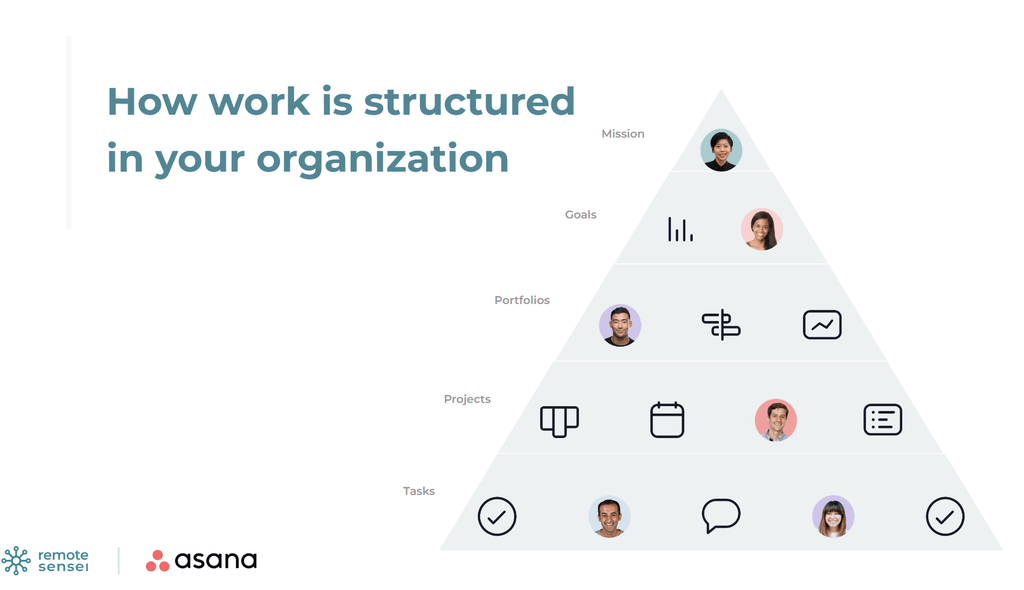
Imagine the pyramid is your organization.
At the top sits your mission. In short, it’s the reason your teams and projects exist. Your day-to-day work flows from it.
Or at least it should.
To deliver on it, you need goals. In Asana, goals can be set for the company, for teams and for individuals.
Goals tell everyone what they’re working toward and what result their work should produce.
To manage your goals and track their progress, we go one level down the pyramid, to the portfolio, a collection of projects.
Here you can manage many projects at once: check their status, workload and progress.
Only when you care about individual pieces of work do you open a specific project, which holds every user’s tasks.
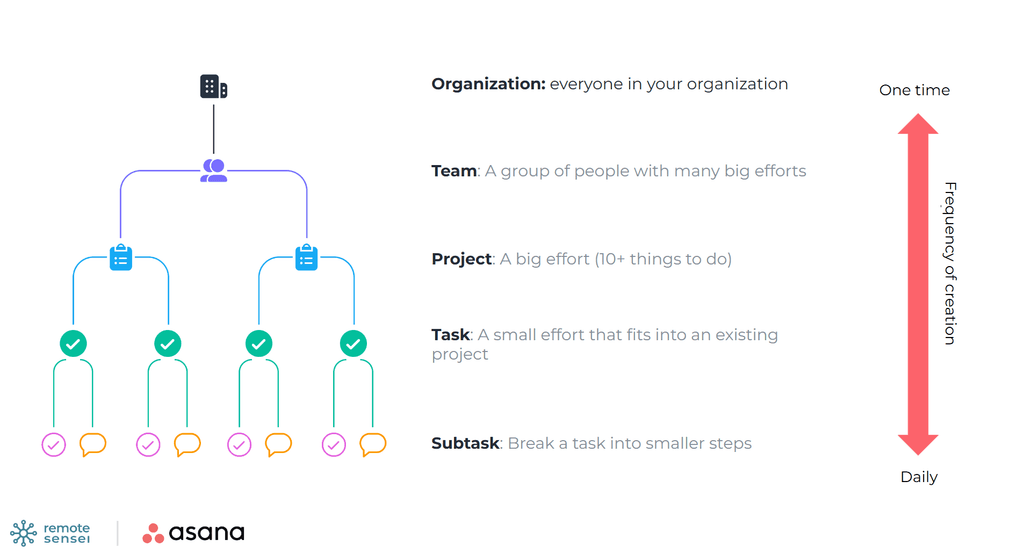
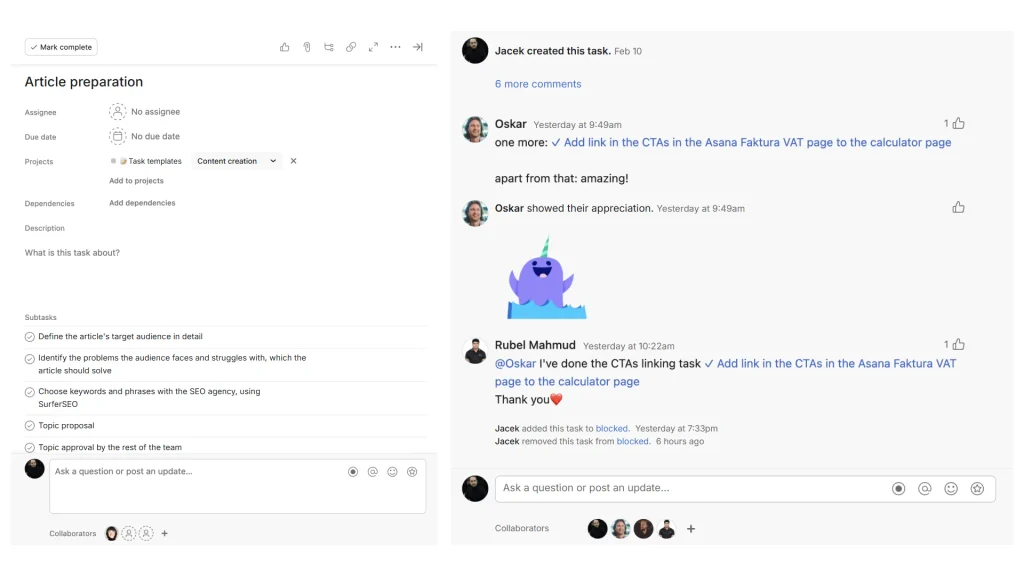
What you see above is a typical split into teams (these can also be departments), which contain projects. Inside the projects you have tasks assigned to people, subtasks, and comments that keep everyone up to date and let conversations run in threads. To find their way around this structure, every user has their own account. That way they can manage their own tasks independently and delegate tasks to others. All of it works in any of 3 ways: in a web browser, in the desktop app, or in the mobile app on your phone. A simplified cycle of collaboration and management in Asana breaks down into 3 stages.
Planning
- Teams create projects and map out their stages and areas of work in them.
- Users create tasks and milestones in those projects, and each one gets an owner.

Workflow and communication
- Team members take part in delivering projects: they’re assigned to them, know their role and know which tasks they own.
- Anyone can hold asynchronous discussions in specific threads, and people work together to get tasks done.
Oversight and management
- With a high-level view of the project, managers run its stages, status and milestones.
- Views like timeline, workload and project dashboards help everyone manage their own work more effectively.
What do these 3 ways of working add up to?
One source of truth and one control center. Remote teams run smoother, meetings shrink, and people who never see each other day to day still get work done.
Now that you know in a nutshell what Asana is, let’s look at what it definitely isn’t.
| But | |
|---|---|
| A CRM built for sales activity and campaign automation | You can integrate Asana with the main sales tools, or mirror the basics of sales management in it |
| A full accounting or invoicing system | The timesheets and budgets add-on lets you track time and plan project budgets in Asana, and many finance apps integrate with it |
| A dedicated place to build an internal company database | You can attach files to projects and tasks, and connect Asana to the most popular cloud storage tools, like Google Drive, OneDrive or Dropbox |
In the rest of this article, we’ll focus on what Asana can be for you and your team.
Know your trial timeline
You can’t start the free trial publicly on your own: we activate it for you. We recommend planning your testing for 14 days. That sounds like plenty, but it flies by. Before you know it you’re halfway through, and you still need to:
- test working in a real project,
- move over at least one process,
- present Asana to the rest of the team.
To avoid a last-minute scramble, you need a plan. You’ll find it in the image below.
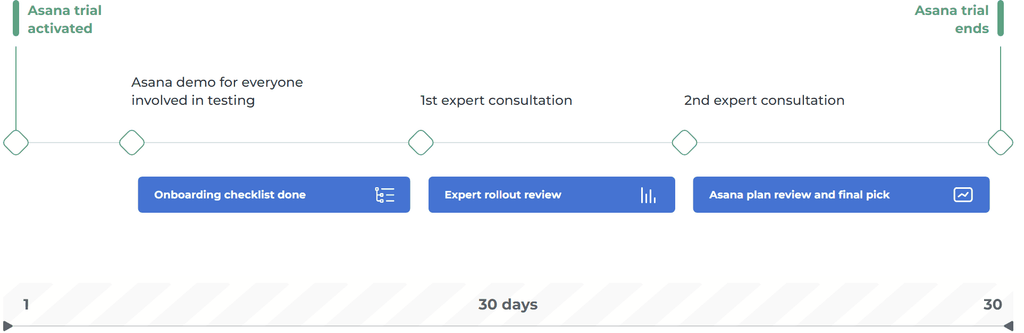
Further down, you’ll get instructions for each of the 5 stages of the trial.
Time to put Asana to the test without wasting time or money!
Testing Asana in 5 steps
You test Asana in 5 steps: activate the trial, learn the features, bring in your team, build your structures and projects, and choose a plan. Like you, other managers want to see how Asana takes hold in their industry, their team and their area of work, and those answers start showing up around the middle of the trial. Before you reach that point, you should hit three milestones that are key to testing. This stage corresponds to the Adoption phase (Stages 9-12 of the Reliability Protocol), the point where you find out whether the new tool and the new work habits will actually stick. So where do you start?
Activating the trial
During the trial you get access to Starter and Advanced features, and you can invite your team right away.
It’s not rocket science.
You can do it yourself.
But…
If you activate the free trial through us, you get dedicated onboarding and support.
Free of charge.
See what an Asana rollout with us looks like, and get in touch through the form on that page.
The form takes 3 minutes, and once it’s in, your first milestone is done.
After you submit it:
- we’ll activate your Asana trial,
- you can come back to the rest of this article.
Speaking of which, what’s your first step once the trial is active?
Learning the features
There’s a reason 87% of people surveyed see a direct link between using a work management platform and higher productivity. When a team adopts Asana well, it gets far more out of itself. With the right features in use, people know what they’re responsible for and when it’s due. Without modern views, they’re stuck managing work in tools that were never built for it. Imagine driving a car with no mirrors, no speedometer and no wipers. Would you get where you’re going as smoothly, safely and confidently? The same thing happens at work. When we force ourselves to run a project over email or analyze workload in a spreadsheet, we’re simply not using the right tools for the job. We never get to full productivity, and sooner or later the frustration sets in, along with the feeling that we’re wasting time. We lose motivation and give up. Honestly… how long can anyone keep that up? That’s where Asana comes in. Since 2008 it has kept developing its interface and features to make project management easier for managers and collaboration easier for teams. It’s easy to get lost, though, because the feature list is long. On top of that, the features depend on each other and fill each other’s gaps, so it pays to learn them in the right order. I’ve got good news for you. You won’t read about them in this article 🙂
You can download them as a separate document and go through it whenever it suits you. The materials were put together by Remote Sensei strategists and trainers in collaboration with Asana, to make putting Asana to work in practice easier.
Once you’ve gone through the materials, it’s time for step 3.
Bringing in your team
You may be wondering why the team only gets invited now.
Because you’ve already learned Asana’s features, you know far more about what it can do.
That makes it easier to bring others in: show them around Asana and help them through their first contact with the tool.
Show them how it works in practice, and make the case for the change it brings.
Like in the example below:
| Asana feature | |
|---|---|
| No control over recurring tasks, like invoices or social media posts | Set the task to repeat, so a new copy appears automatically when you mark it complete |
| No visibility into what should happen next in a project | Timeline view, which shows tasks and the milestones they lead to |
| Trouble managing your own tasks | A clear calendar view, with tasks laid out across your working days |
| Nobody knows how much each team member has on their plate | Portfolios, a separate feature that makes managing many projects easier, including visibility into each user’s workload |
| Building a meeting agenda takes ages, and it’s unclear who owns what | Asana’s advanced search, which quickly gives you a list of tasks, e.g. high priority, due in the next 2 weeks, or already overdue |
| Communication spread across many threads means information gets lost | Asana’s Inbox to stay on top of updates, with the conversation kept in the comments of specific tasks |
That’s how you raise the odds that everyone accepts Asana.
With your help, the people involved learn what they need to know about what it can do, and that opens the door to a constructive conversation about rolling it out.
Digital transformation is hard, though. Old habits often run so deep that change triggers reluctance, resistance, even fear. People rarely embrace something new that asks them to rethink how they work.
It’s worth the effort, and organizations that have already been through these changes will tell you so.
So how do you bring people into Asana?
We recommend 2 ways:
On your own
- Run an online demo for future Asana users. When you invite them, explain what it’s for and what they’ll get out of it.
- Add new users by inviting them to a specific team or project.
- Give them access to the feature descriptions for each plan.
- Decide together which projects you want to bring into Asana during the trial.
- Tell everyone when the trial ends and encourage them to test together.
With Remote Sensei
- Activate the trial if you haven’t already.
- Reply to our email and pick a time for an Asana demo with our trainer.
Your dedicated trainer kicks off everything else and helps you through testing.
Whichever option you choose, once new people are in, it’s time to build out your information architecture in Asana.
Building structures and projects
You’re in the second half of the trial.
That means:
- everyone else involved has access to Asana,
- you all know the basic features and can test them in practice,
- you know what testing Asana is for and what changes you expect once the work management tool is in place.
Time to map your real workflows and projects.
That’s how you confirm which teams will use Asana and which projects you’ll bring into it.
You may be doing this for the first time, because your old tools didn’t allow for it.
You may not even have a project map.
To make it easier, see how example teams and their projects look in the screenshot below.
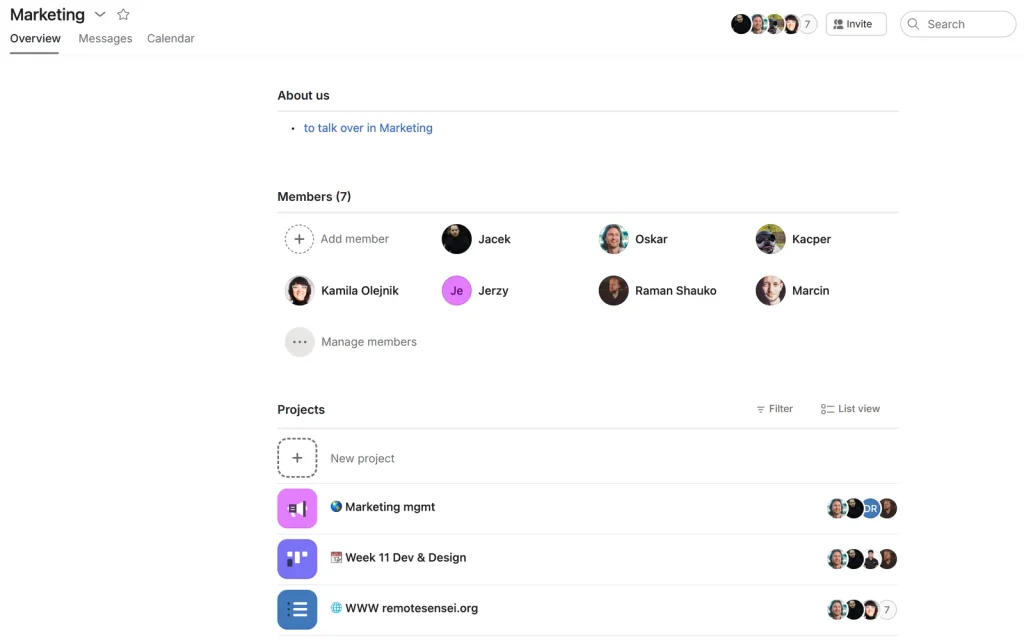
Here, projects are areas of work made up of many tasks, e.g. onboarding a new hire, a marketing campaign or IT requests.
Each of these areas (projects) fills up with tasks created by Asana users.
Before you start adding tasks, prepare a list of projects that could go into Asana first.
Other team leads and project coordinators can help you with this.
It matters that the people affected by testing and rolling out Asana get real ownership in the process.
Every new Asana user should get to try, hands-on, what it means to:
- create a project
- set up its sections and stages
- add and delegate tasks
- adjust views to their needs
You’ll be surprised how much value comes from everyone’s involvement and sharp eyes.
The more you learn in practice, the better.
The more problems and tricky situations you run into, the better.
Remember, you’re still testing.
This is the time for trial and error, so everyone gets hands-on with Asana and, through practice, simply gets better at using it.
The real rollout is still ahead of you.
If you’d rather have a consultant design your team and project structure with you, see what an Asana rollout with Remote Sensei looks like: from diagnosis to the first projects delivered on time.
With the basic structures in place, there’s one stage left.
Choosing a plan
Asana offers 5 plans:
- Personal (free, up to 2 seats),
- Starter
- Advanced
- Enterprise
- Enterprise+
In our client projects and training materials, we focus mainly on the paid plans.
Years of rollouts have taught us that:
- The investment in these plans pays for itself many times over,
- Their features are essential today.
Even Starter opens up the features that most often decide whether a team stays in Asana.
If you requested the materials after the “Learning the features” section, they’re most likely in your inbox already.
If you haven’t yet, I’d encourage you to do it now.
It’s the simplest way for you and your team to understand the differences between the plans.
At this stage, the documents may seem… advanced.
A bit like reading up on every program and function your dishwasher has.
I’ve got more good news for you 🙂
Or rather, a motivating reminder.
During the trial, you’ll test Starter and Advanced features in practice.
And our team will help you do it.
That way you’ll make an informed decision about which Asana plan is right for you, and match your spending to what your team actually needs.
Head to the summary below to take your first steps and start testing Asana in your own work environment, with a clear reason behind it.
Summary
Before you start testing, here’s your checklist:
- Map your current challenges and what you expect from rolling out Asana.
- Activate the trial.
- Learn Asana’s features (download the materials).
- Bring the rest of your team into Asana.
- Move your structures and projects into Asana.
- Choose your plan.
If along the way you want to check where your team stands on reliability today, separate from testing Asana, fill in the short Reliability Diagnostic. It takes a few minutes and shows you what to fix first.
Frequently asked questions
Where do I start testing Asana?
Start by answering three strategic questions: what challenges you want to solve, which goals Asana should support, and what work habits you want to build. Only then move on to the testing itself.
How long is the free Asana trial?
The free trial isn’t available publicly: you start it with Remote Sensei’s help. Plan your testing for 14 days: that’s enough to test working in one project, move at least one process over and present Asana to the rest of the team, as long as you map out a plan in advance.
What does testing Asana in 5 steps look like?
It covers activating the trial, learning the features, bringing in the team, mapping your structures and projects, and choosing your plan. That’s still testing. The real rollout starts once the team decides to stay in the tool.
What isn’t Asana?
Asana isn’t a dedicated sales CRM, an accounting system or a database. It integrates with tools that cover those jobs, and its timesheets and budgets add-on handles time tracking and project budgets.
Which Asana plans can I choose from?
Asana offers five plans: Personal (free, up to 2 seats), Starter, Advanced, Enterprise and Enterprise+. Asana is moving customers from the legacy Premium and Business plans to Starter and Advanced. During the trial you’ll test Starter and Advanced features, so you can pick the plan that fits your team knowing what you’re paying for.
Will I get support while testing Asana?
If you activate the free trial through Remote Sensei, you get dedicated onboarding and support, free of charge, for the whole trial.
How is testing Asana different from rolling it out?
Testing checks whether Asana fits your team. Rollout is the work that comes after that decision: designing your team and project structure, migrating processes, training, and keeping habits on track until tasks stop slipping through the cracks. If you want to go through it with a consultant, see our Asana rollout offer.